How to Set Up Products, Pricing, and Templates in BidEngine

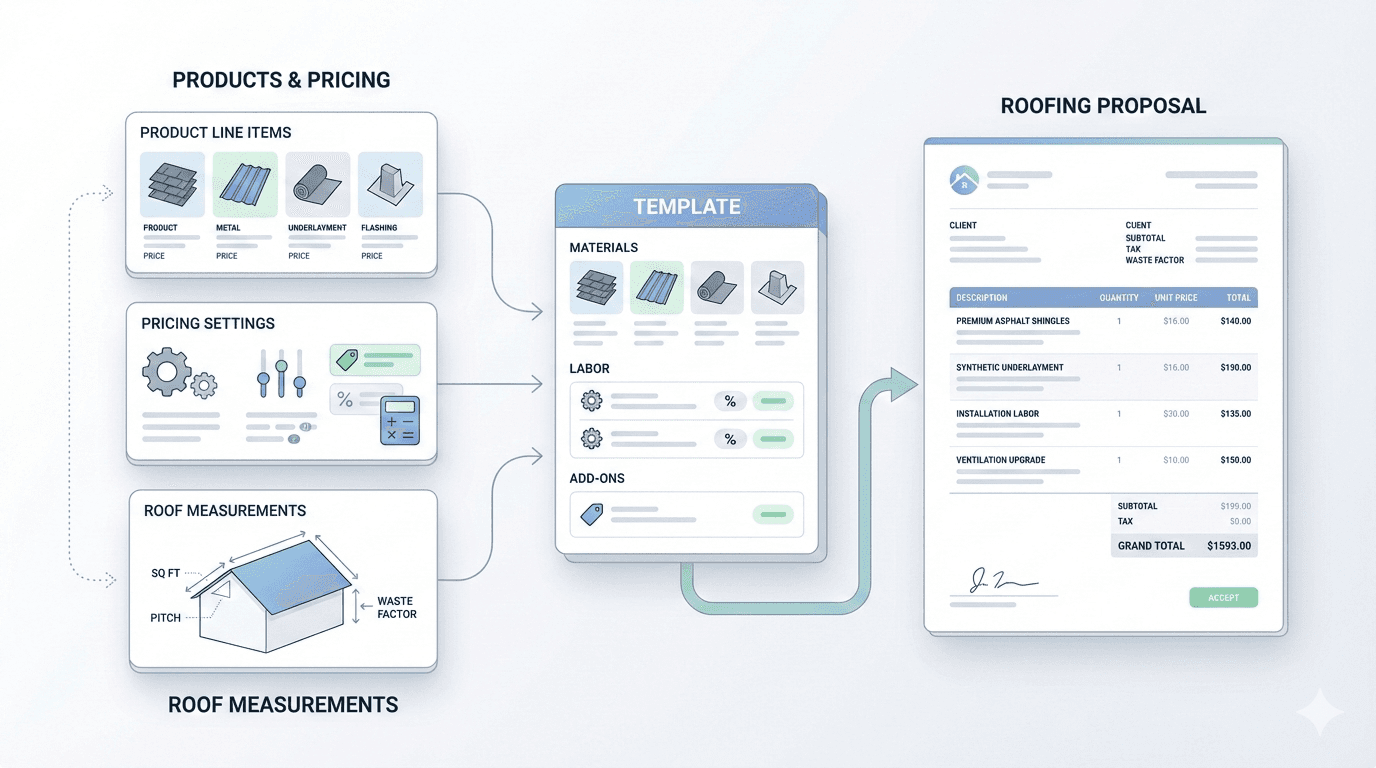
BidEngine gives you powerful tools to generate fast, accurate roofing proposals based on real roof measurements. To get the most value out of the proposal system, it’s important to understand how products, pricing, and quote templates work together—and how to update or expand them as your business evolves.
This guide walks you through:
- Where products and pricing live in BidEngine
- The difference between Products and Templates
- How to update products and pricing
- How to add new products and new templates
- How products and templates are used in proposals
How Proposals Work in BidEngine (Big Picture)
When you create a proposal in BidEngine, you are essentially generating a ready-to-sign contract that includes:
- Customer and company information
- A roof diagram that shows where the work will be done
- A detailed scope of work with line items
- Pricing, payment terms, and conditions
To build that proposal, BidEngine uses two key building blocks:
- Products (Line Items) – individual services or cost components with pricing
- Quote Templates – collections of products that define how a specific type of roof should be quoted
The software combines:
- The roof measurement data (area, pitch, facets, etc.)
- The template you select
- Your answers to condition-based questions (layers, decking, steep pitch, etc.)
From there, BidEngine automatically populates the proposal with the correct line items and pricing.
Where Products and Pricing Are Stored
All products and templates are managed from your Settings area.
Navigation Path
Settings → Products → Product & Template Catalogue
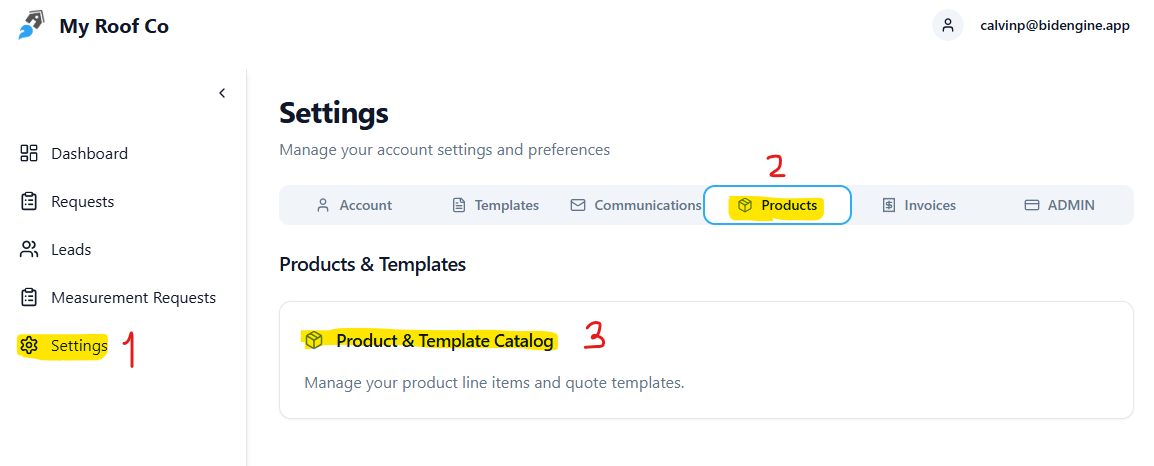
From here, you’ll see two tabs:
- Products
- Templates
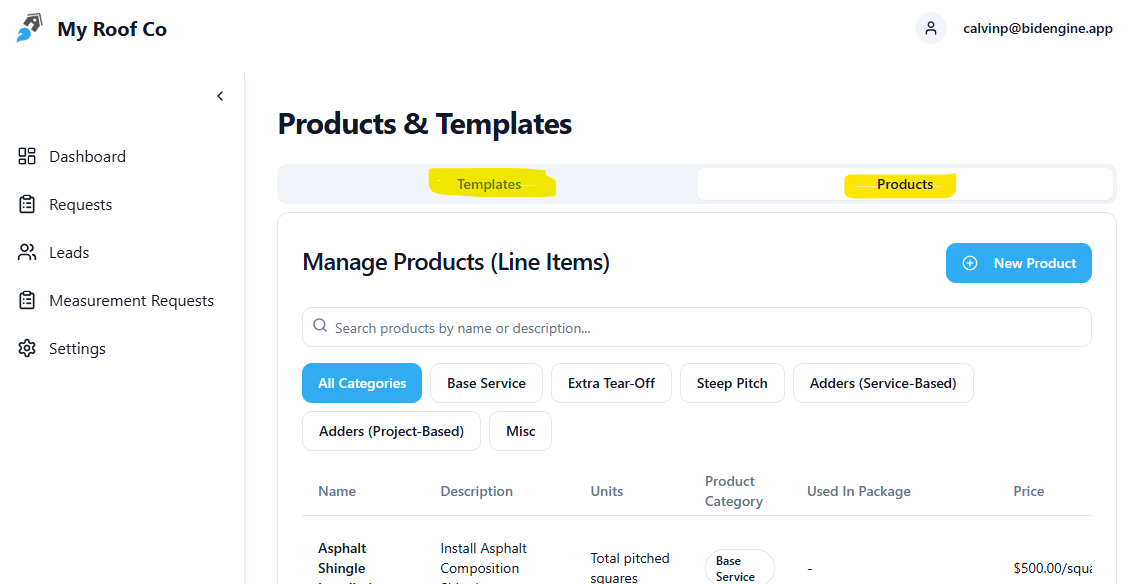
Each serves a different purpose.
Products vs. Templates: What’s the Difference?
Products (Line Items)
A product is a single billable line item that can appear in a proposal.
Examples:
- Asphalt Shingle Installation
- Extra Layer of Tear-Off
- Steep Pitch Adder
- Decking Replacement
Products contain:
- The description your customer sees
- The pricing logic
- The measurement logic used to calculate quantity
Important: Templates are built from products. A template cannot function without products.
Templates (Quote Templates)
A template is a predefined bundle of products used to quote a specific roof type.
Examples:
- Asphalt Shingles
- Modified Bitumen
- Standing Seam Metal
Templates typically include:
- One Base Service (the core roof installation)
- Multiple adders (steep pitch, extra tear-off, decking, etc.)
When you select a template while creating a proposal, BidEngine uses it as the rulebook for:
- Which line items are included
- When adders should apply
- How pricing adjusts based on measurements and conditions
How to Update Products and Pricing
Editing an Existing Product
- Go to Settings → Products → Product & Template Catalogue → Products
- Find the product you want to update (you can search or browse by category)
- Click the product to open the Edit Line Item panel
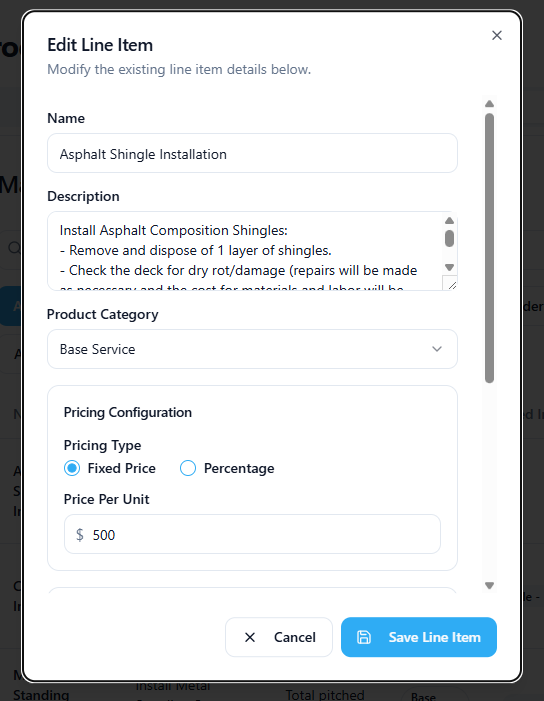
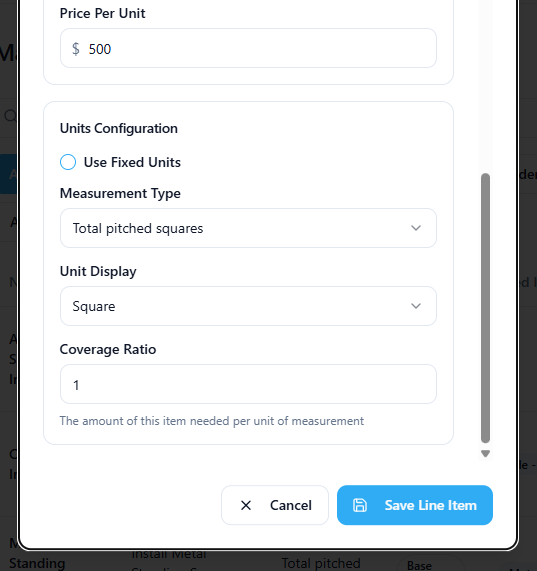
Here’s what each field means:
- Name The line item name shown in proposals (e.g. “Asphalt Shingle Installation”).
- Description A detailed explanation of the work, materials, and warranties included.
- Product Category Used to organize products in the catalogue (Base Service, Steep Pitch, Adders, etc.).
- Pricing Type
- Fixed price per unit
- Percentage of total project cost (commonly used for adders)
- Price Per Unit The actual cost—either a dollar amount per unit or a percentage.
- Measurement Type Determines which roof measurement (squares, pitch, linear feet, etc.) drives quantity.
- Unit Display How the unit appears in the proposal (Squares, Square Feet, Each, Pitch, etc.).
- Coverage Ratio How much of the item is needed per unit of measurement.
Once saved, the updated pricing will automatically apply anywhere this product is used—across all templates and future proposals.
How to Add a New Product
- Go to Settings → Products → Product & Template Catalogue → Products
- Click + New Product
- Fill in all product details:
- Name and description
- Category
- Pricing and measurement logic
After saving, the product becomes available to be added to any quote template.
Tip: Create products first, then add them to templates. Templates depend on products, not the other way around.
How Templates Are Stored and Managed
Viewing and Editing Templates
- Go to Settings → Products → Product & Template Catalogue → Templates
- You’ll see the Manage Quote Templates list
- Click any template to edit it
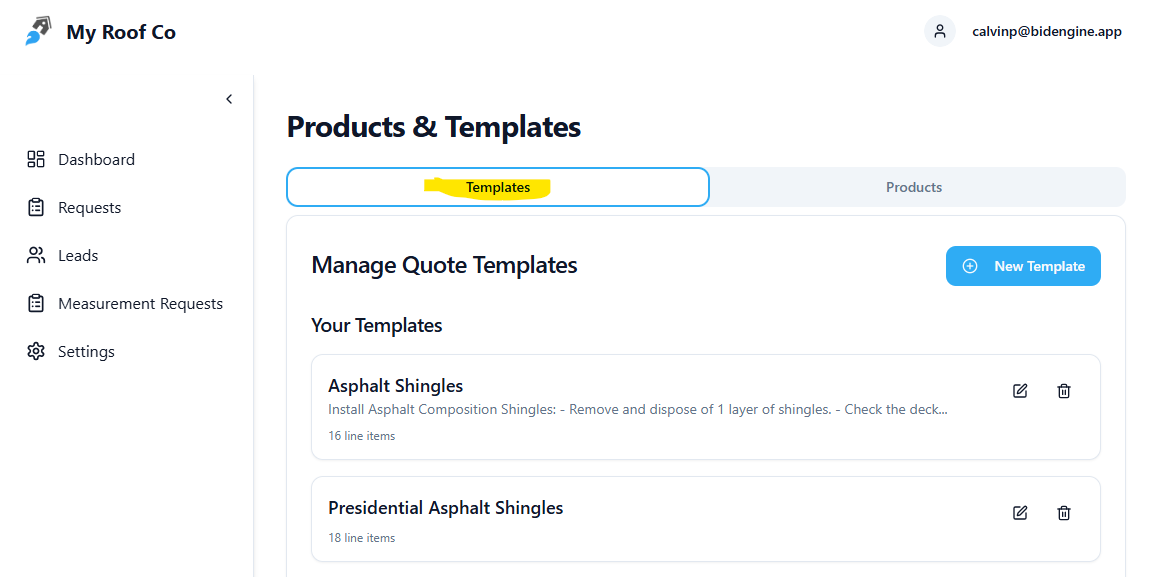
Inside a template, you can:
- Rename it
- Activate or deactivate it
- Choose the Product Type
- Add or remove line items
Adding Line Items to a Template
- Click + Add Line Item
- Select from your existing products
- Save changes
How to Add a New Template
- Go to Templates
- Click + New Template
New templates:
- Are Inactive by default
- Contain no line items
To complete setup:
- Activate the template
- Select the appropriate product type
- Add the base service and any adders
- Save
Once active, the template will be available during proposal creation.
How Products and Templates Are Used in Proposals
When creating a proposal, the workflow looks like this:
- Select a roof measurement (uploaded or purchased)
- Choose a quote template (e.g. Asphalt Shingles)
- Answer condition-based questions (layers, decking, pitch, etc.)
- BidEngine:
- Applies the base service using roof area
- Automatically adds pricing adders based on measurements and answers
- Generates a complete, itemized proposal
Because pricing lives at the product level, you can confidently reuse templates knowing everything stays consistent and accurate.
Why BidEngine Is Built This Way
This system is intentionally flexible:
- Products can be reused across many templates
- Pricing updates propagate automatically
- Proposals are faster and more consistent
- Estimates stay accurate as roof conditions change
It takes a little time to set up properly—but once it’s dialed in, BidEngine dramatically reduces manual quoting work while improving accuracy and professionalism.